
Know what this check can tell you
ZATCA’s verification service checks an establishment’s registration for Value Added Tax. It is available to the public as well as taxpayers. Use it when you need to compare a supplier’s registration details with information supplied on an invoice or business document.
Treat the result as a registration check. It does not, on its own, prove that goods were delivered, that payment reached the intended seller, or that every invoice field and tax calculation is correct. Keeping those questions separate makes the enquiry more useful.

Collect the right supplier identifier
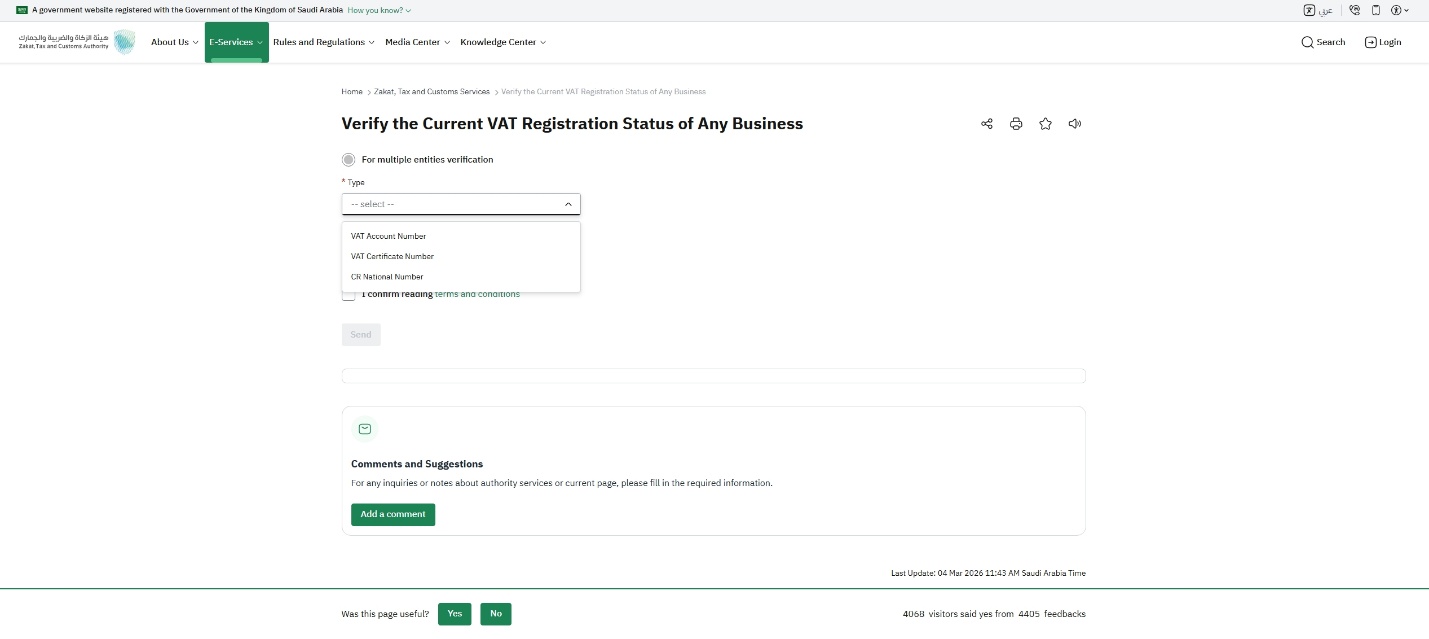
The service description lists three search identifiers: a VAT account number, a Commercial Registration number or a VAT certificate number. Obtain the relevant number from the business document you are checking and note which type it is.
As a practical precaution, do not guess the identifier type because two numbers have a similar length. If a supplier gave you a reference without saying what it represents, ask them to identify it before searching. Keep the original invoice available so you can return to it when comparing the result.
Navigate to the official checker
Open ZATCA’s website and find its E-Services section. The official manual directs users to the VAT-registration verification tool. Starting from the service-description page is helpful if a saved direct lookup link has stopped working.
Use the checker linked by ZATCA rather than a seller’s imitation lookup page. If the screen differs from an image in this guide, follow the live official service. A screenshot records one interface at one time; it is not a substitute for the current website.
Select the search type and send the enquiry
In the official tool, select the search type that matches your document. Enter the number, complete any verification requested by the live form, and review the terms it presents. ZATCA’s manual then instructs the user to select Send and view the returned result.
Copy the digits carefully without adding spaces or surrounding invoice text. If the field rejects the entry, check the original document and selected type before trying again. Do not alter digits simply to satisfy a validation message.
Compare the result with the supplier document
Read the returned registration information and compare the business identity with the supplier named on your document. If a field is missing from the result, do not fill the gap by assuming what it should have said. Save a private note of what you actually checked and when.
For an accounts team, a useful review note is: “Registration checked using the supplier’s stated identifier; these details matched, and this difference needs clarification.” This distinguishes a completed control from an unresolved issue and avoids turning a lookup into an unsupported allegation.
Handle a mismatch without guessing
First check for a typing mistake or the wrong identifier type. Next ask the supplier for clarification or an updated document that explains the difference. If you still need help, use support reached through ZATCA’s official service page.
Do not publish a business’s private invoice or accuse it of fraud solely because a search failed. Keep the document, lookup reference and correspondence together for the appropriate reviewer. If you share a screenshot for general advice, obscure customer names, contact details and invoice references; provide complete records only through the official channel handling your case.