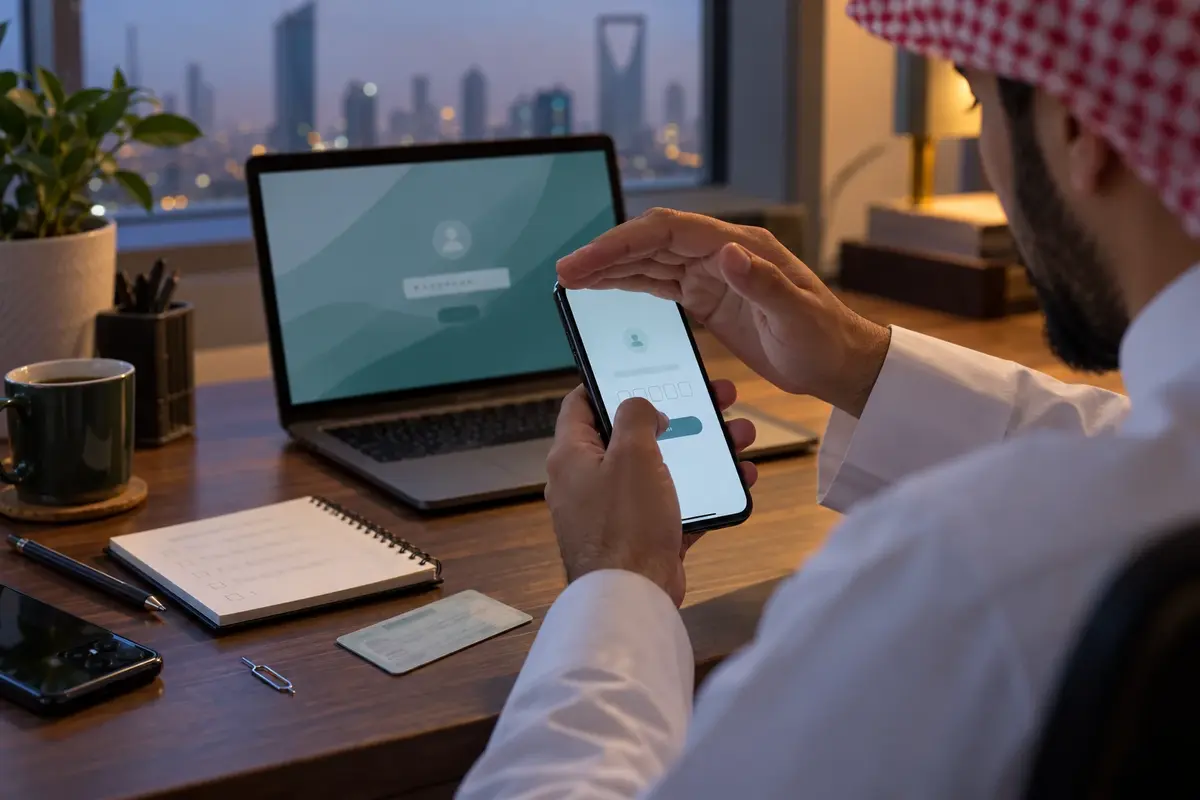
Identify which part of the sign-in is failing
Absher credentials, the mobile number registered to the account and a Nafath approval are related but separate parts of digital access. Start by recording the exact point at which the attempt stops: an incorrect password, an unavailable registered number, no verification message, an unrecognized Nafath request or a digital identity that has not been activated. This prevents a password reset from being repeated when the actual problem is the phone number or identity activation.
Use only the official Absher website or application and the official Nafath application. Type the address yourself or open it from an official government page. Do not use a reset link sent by an unknown caller or a sponsored search result that asks for banking details. Absher's public login page offers password recovery and login through Nafath; neither route requires a stranger to control your screen.
Reset an Absher password when the registered number works
Absher's official Reset Password page asks for the correct National ID or Iqama number, the mobile number and an image code. Enter the mobile number already associated with your own account. Absher warns that using an incorrect number can cause registration failure and that one private mobile number should not be reused for another account in a way that causes cancellation.
Follow the password policy shown on the live page. At the time of verification, Absher stated that a password must be at least eight characters and include uppercase, lowercase and numeric characters. Do not reuse an old password or a password from email or banking. Complete the verification on your own device, then sign in again from a fresh official page instead of returning through the message that brought the code.
- 1
- 2
Use your own registered details
Enter your ID or Iqama, registered mobile number and the displayed image code exactly as requested.
- 3
Set and test a new password
Create a unique password that meets the live policy, then test it through a new official login session.
If the old mobile number is unavailable
Do not register a second identity or borrow another person's number to bypass the old record. Absher publishes a mobile-number update service and lists activation/self-service locations that can activate a digital ID, change a mobile number and reset a password. The suitable route depends on whether you can still authenticate through Nafath and on the options available to your account.
Absher's mobile-number update guidance states that the account must be activated through Nafath for that online route. If that prerequisite cannot be completed, use Absher's official list of registration and activation locations or contact official support at the number displayed on Absher. Take your own valid identity document and follow the instructions at the selected channel. Do not send a photograph of the full document to a person claiming to be remote support.
Activate and use Nafath safely
SDAIA's published Nafath guidance describes login through the Nafath application and approval of incoming requests. Absher's activation guidance directs the user to open Nafath, use the account's Absher identity details where requested, receive the verification code on the registered mobile and complete the instructions shown in the app. Interfaces can change, so follow the current official prompts rather than a video that asks you to disable security settings.
For every request, compare the number or context displayed by the service with the request shown in Nafath. Reject a prompt you did not initiate. A caller who says an approval is needed to cancel fraud, release a parcel, update an Iqama or receive a refund is not a reason to approve it. Nafath approval can confirm your identity to another service; treat it like signing the transaction shown on screen.
Protect the account during and after recovery
Use a personal device, updated operating system and trusted connection. Do not screen-share the reset process. Never read an OTP aloud, approve an unexpected Nafath request or let another person register their fingerprint or face on your device. Official support may guide you to a page, but it should not need your password or an approval that transfers control of your identity.
After access is restored, confirm the registered mobile number and review recent notifications for actions you do not recognize. Change any reused passwords on other services. If an unrecognized request was approved or account details changed, contact Absher or the affected government service through its published channel immediately and preserve the message, time and reference. Do not post the ID number, mobile number or screenshots containing QR codes in a public forum.
When self-service does not resolve the problem
Stop repeated attempts if the page reports a lock, the mobile record cannot be verified or the Nafath application cannot activate the identity. Use Absher's current contact information or an official activation location and describe the exact error without sharing credentials. Absher displayed 920020405 for technical support when this guide was verified; confirm the number on the official page before calling.
A successful password reset does not correct an expired Iqama, a mismatched civil record or a problem inside another government service. Once sign-in works, return to the service that produced the original error and check its own requirements. Keep recovery separate from the underlying transaction so that access is not mistaken for approval or completion.